Setting up and managing an online store can be daunting, but with the power of Woocommerce on WordPress, it becomes a breeze. This article will guide you through the steps necessary to establish your very own online store and provide you with valuable tips on managing it effectively. From setting up the framework to customizing your store’s appearance, you’ll find all the information you need to get started and succeed in the world of e-commerce. So, grab a cup of coffee, sit back, and let’s embark on this exciting journey together!
Installing and Activating WooCommerce
Downloading and Installing WooCommerce
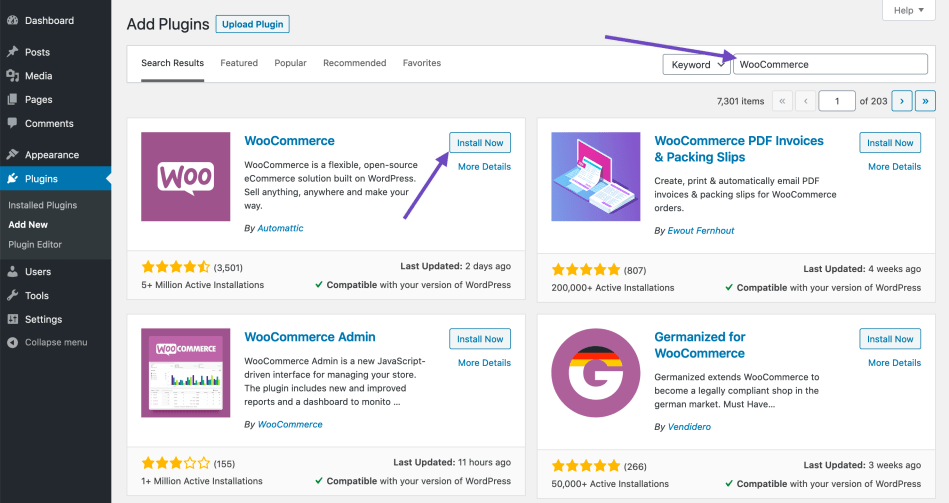
To begin setting up your online store with WooCommerce, the first step is to download and install the WooCommerce plugin. This can be done directly from the WordPress dashboard. Simply go to the “Plugins” section in the left-hand menu, click on “Add New,” and search for “WooCommerce.” Once you find the plugin, click on “Install Now” and wait for the installation process to complete.
Activating WooCommerce
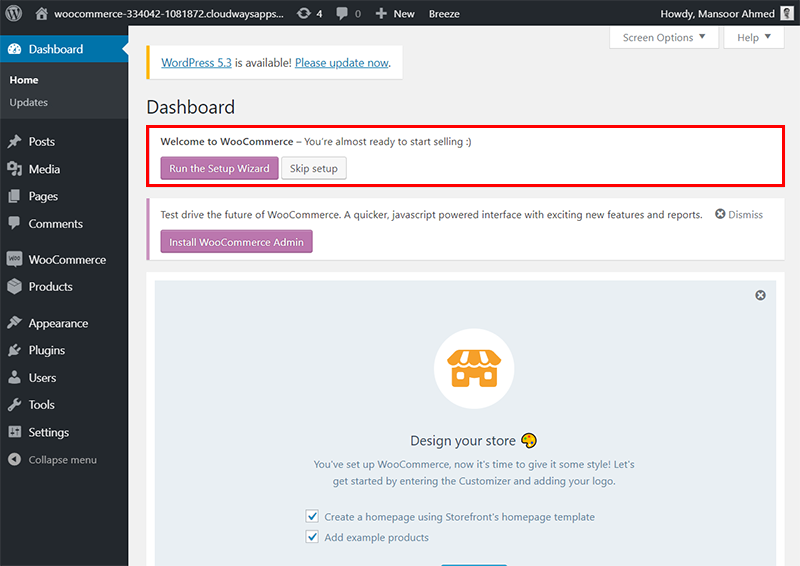
After the installation process is finished, you need to activate the WooCommerce plugin. To do this, go to the “Plugins” section in the WordPress dashboard and find the WooCommerce plugin. Click on the “Activate” button to activate the plugin. Once activated, you will see a new tab labeled “WooCommerce” in the left-hand menu of your WordPress dashboard. Congratulations, WooCommerce is now installed and ready to be configured!
Configuring Basic Settings
Creating the First Product Category
The first step in setting up your online store is to create product categories. Product categories help you organize your products and make it easier for customers to navigate your website. To create a new product category, go to the “Products” tab in the WooCommerce section of your WordPress dashboard. Click on “Categories” and then on the “Add New Category” button. Fill in the necessary information, such as the category name and description, and click on “Add New Category” to create it.
Setting Up Shipping Methods
Configuring shipping methods is an essential part of running an online store. WooCommerce offers various options for setting up shipping methods according to your business needs. To configure shipping methods, go to the “WooCommerce” tab in your WordPress dashboard and click on “Settings.” From there, navigate to the “Shipping” tab. You can enable or disable different shipping methods, set shipping rates, and customize the options for each shipping method that you offer.
Configuring Payment Gateways
To accept payments on your online store, you need to set up payment gateways. WooCommerce allows you to integrate with various popular payment gateways such as PayPal, Stripe, and Authorize.net. To configure payment gateways, go to the “WooCommerce” tab in your WordPress dashboard and click on “Settings.” From there, navigate to the “Payments” tab. Enable the payment method(s) you want to offer, and then enter the required information to connect your store with the payment gateway(s) of your choice.
Managing Tax Settings
Managing tax settings is crucial to ensure compliance with local tax regulations. WooCommerce provides built-in options to handle taxes based on your business location. To configure tax settings, go to the “WooCommerce” tab in your WordPress dashboard and click on “Settings.” From there, navigate to the “Tax” tab. You can enable tax calculations, set tax rates, and configure tax classes based on your specific taxation requirements.
Adjusting General Settings
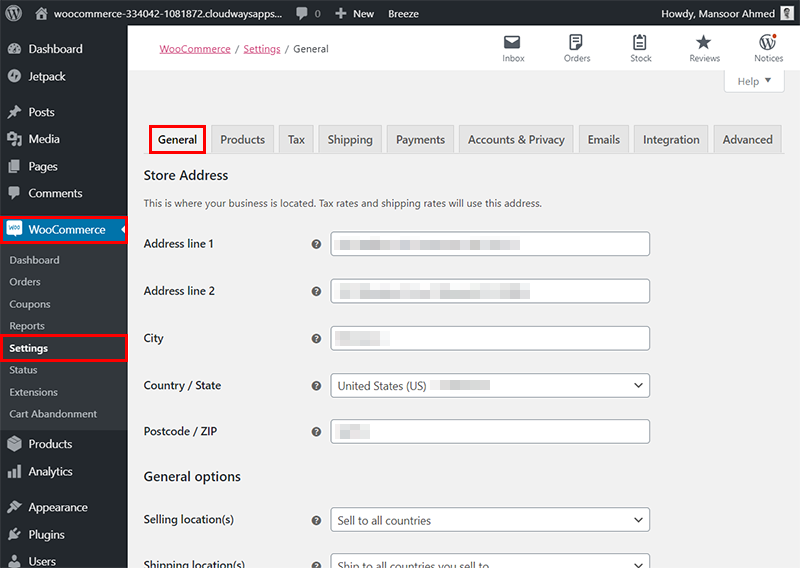
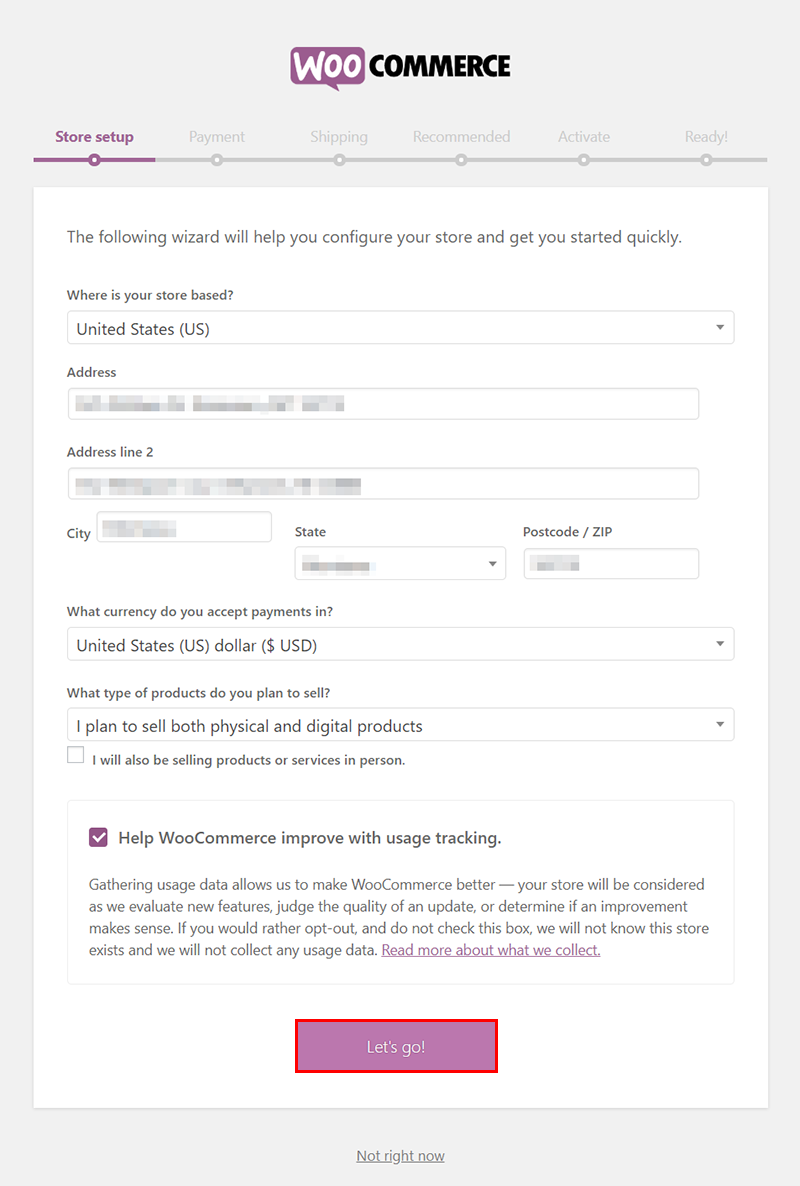
In the general settings section, you can customize various aspects of your online store, such as the currency, language, and store location. To access the general settings, go to the “WooCommerce” tab in your WordPress dashboard and click on “Settings.” From there, navigate to the “General” tab. Here, you can adjust settings related to your store’s address, selling location, and currency options. Make sure to review and update these settings to match your business requirements.
Adding and Managing Products
Creating a New Product
Adding products to your online store is the core functionality of WooCommerce. To create a new product, go to the “Products” tab in the WooCommerce section of your WordPress dashboard and click on “Add New.” Fill in the product details, including the title, description, price, images, and any other necessary information. You can also set product variations, such as size or color options. Once you have entered all the required information, click on “Publish” to make the product visible on your store.
Configuring Product Inventory
To manage your product inventory effectively, WooCommerce provides options to track stock and set stock thresholds. To configure product inventory settings, go to the “Products” tab in your WooCommerce section of the WordPress dashboard and click on “Inventory” within the product editor. Here, you can enable stock management, input stock quantities, and set a low-stock threshold to receive notifications when the stock is running low.
Setting Product Attributes
Product attributes define the characteristics of your products, such as size, color, or material. To set product attributes, go to the “Products” tab in your WooCommerce section of the WordPress dashboard and click on “Attributes.” Create a new attribute, define its options, and assign it to relevant products. This allows your customers to filter and search for products based on specific attributes.
Organizing Product Categories
Organizing your products into categories helps improve the navigation and user experience of your online store. To manage product categories, go to the “Products” tab in the WooCommerce section of your WordPress dashboard and click on “Categories.” Here, you can create new categories, edit existing ones, and assign products to specific categories. By creating a logical category structure, you can make it easier for customers to find the products they are looking for.
Managing Product Tags
Product tags are additional keywords that can be assigned to products to improve searchability. To manage product tags, go to the “Products” tab in your WooCommerce section of the WordPress dashboard and click on “Tags.” Here, you can create new tags and assign them to relevant products. By using descriptive and relevant tags, you can enhance the search functionality of your online store.
Importing and Exporting Products
If you have a large inventory or want to migrate products from another platform, WooCommerce allows you to import and export products in bulk. To import or export products, go to the “Products” tab in your WooCommerce section of the WordPress dashboard and click on “Import” or “Export.” Follow the instructions and requirements to import or export your products efficiently.
Customizing the Store’s Appearance
Choosing a Store Theme
The visual appearance of your online store plays a crucial role in attracting and engaging customers. WooCommerce offers a wide range of customizable themes specifically designed for online stores. To choose a store theme, go to the “Appearance” tab in your WordPress dashboard and click on “Themes.” Browse through the available themes and choose the one that best matches your brand identity and store requirements. Install and activate the chosen theme to apply it to your store.
Customizing the Header and Footer
The header and footer sections of your website provide essential navigation elements and contact information. To customize the header and footer of your online store, go to the “Appearance” tab in your WordPress dashboard and click on “Customize.” From the customization options, navigate to the relevant sections to modify and personalize the header and footer of your store. Customize these sections to align with your brand and business needs.
Configuring Store Layout
WooCommerce allows you to customize the layout of your store pages. To configure the store layout, go to the “Appearance” tab in your WordPress dashboard and click on “Customize.” Navigate through the available customization options and select the layout elements you want to modify, such as the product listing, sidebar, or page width. Customize and preview these settings to create a layout that showcases your products effectively.
Adding Widgets to the Store
Widgets are small blocks of content, such as a search bar or a product filter, that can be added to the sidebars or footer sections of your store. To add widgets to your store, go to the “Appearance” tab in your WordPress dashboard and click on “Widgets.” From there, you can drag and drop widgets into the desired widget areas to add functionality and enhance the user experience of your online store.
Customizing Product Pages
Product pages are where customers get detailed information about your products. To customize your product pages, go to the “Appearance” tab in your WordPress dashboard and click on “Customize.” From there, navigate to the relevant sections to modify the appearance and layout of your product pages. Customize these settings to showcase your products in the best possible way and provide a seamless shopping experience for your customers.
Enhancing Store Functionality
Installing and Managing Plugins
To add additional functionality to your online store, WooCommerce allows you to install and manage plugins. Plugins offer a wide range of features, such as social media integration, advanced analytics, or marketing tools. To install and manage plugins, go to the “Plugins” tab in your WordPress dashboard and click on “Add New.” Search for the desired plugin, install it, and activate it to add new features and enhance the functionality of your online store.
Extending Store Functionality with Extensions
WooCommerce provides extensions that offer specific functionalities and integrations with third-party services. These extensions can help you optimize your store operations, streamline shipping processes, or enhance payment options, among other things. To extend the functionality of your store with extensions, go to the “WooCommerce” tab in your WordPress dashboard and click on “Extensions.” Browse through the available options and install the extensions that align with your business needs.
Integrating with Social Media
Social media integration is crucial for driving traffic to your online store and reaching a wider audience. WooCommerce allows you to connect your store to popular social media platforms like Facebook, Instagram, or Twitter. To integrate your store with social media, go to the “WooCommerce” tab in your WordPress dashboard and click on “Settings.” Navigate to the “Integration” tab and follow the instructions to connect your store with your desired social media platforms. This integration enables you to promote products, drive sales, and engage with your customers through social media channels.
Setting Up and Managing Orders
Managing Customer Orders
Managing customer orders is a fundamental part of running an online store. WooCommerce provides an intuitive order management system that allows you to track, process, and fulfill customer orders efficiently. To manage customer orders, go to the “WooCommerce” tab in your WordPress dashboard and click on “Orders.” Here, you can view and search for orders, process payments, update order statuses, and communicate with customers regarding their orders.
Processing Orders
Once a customer places an order on your online store, it is essential to process it promptly to ensure a seamless shopping experience. WooCommerce offers tools to manage order processing efficiently. To process orders, go to the “WooCommerce” tab in your WordPress dashboard and click on “Orders.” Select the order you want to process and click on it to view the details. From there, you can update the order status, generate invoices, print packing slips, and manage the fulfillment process to ensure timely delivery.
Handling Refunds and Returns
Dealing with refunds and returns is a normal part of running an online store. WooCommerce provides a built-in system to handle refunds and returns smoothly. To manage refunds and returns, go to the “WooCommerce” tab in your WordPress dashboard and click on “Orders.” Select the order you want to process a refund or return for and click on it to view the details. From there, you can initiate a refund request, process returns, and communicate with customers regarding the refund or return process.